scrcpy Commands: The Complete List With Shortcuts and Recipes
scrcpy commands are command-line options you add after scrcpy in a terminal to control how your Android screen mirrors to a PC. For example, -S turns the phone screen off and -b 4M sets the bit rate. This 3.x reference walks through every scrcpy command and shortcut for the tool, which plenty of people search for as “screencopy.”
What Is scrcpy and How Does a scrcpy Command Work?
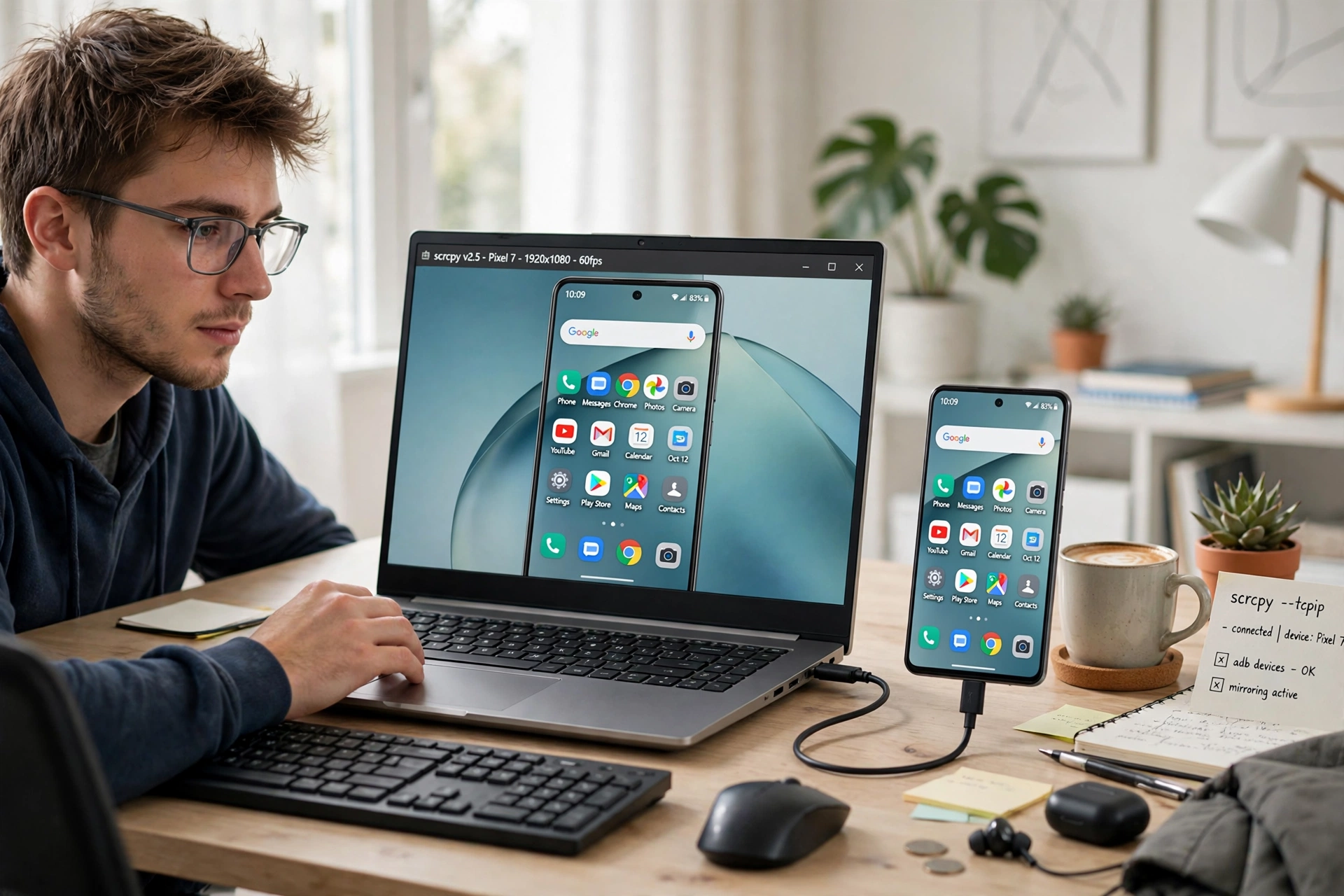
scrcpy is a free, open-source app that lets you display your Android screen on a PC and control the phone with your mouse and keyboard over USB or Wi-Fi. Genymobile publishes the project under the Apache License 2.0, with Romain Vimont (rom1v) as lead developer. Its numbers are tight. The official README lists 35 to 70 ms of latency, 30 to 120 frames per second (FPS), and startup in about 1 second.
Under the hood, scrcpy runs over the Android Debug Bridge (ADB). Each launch pushes a small server to the phone, which grabs the screen through the phone’s hardware encoder and streams that video to a desktop window. No root is required. You won’t need a phone app or an account either, and the stream stays on your local machine.
What a scrcpy Command Looks Like
A scrcpy command is the word scrcpy followed by one or more flags, and each flag changes one behavior. Short flags take one dash (-m 1024). With long flags, you type two dashes (–max-size=1024), and the pair of lines below produce identical results:
scrcpy -m 1024 -b 4M -S
scrcpy –max-size=1024 –video-bit-rate=4M –turn-screen-off
To see every option your installed version supports, run scrcpy –help.
scrcpy Download and Setup
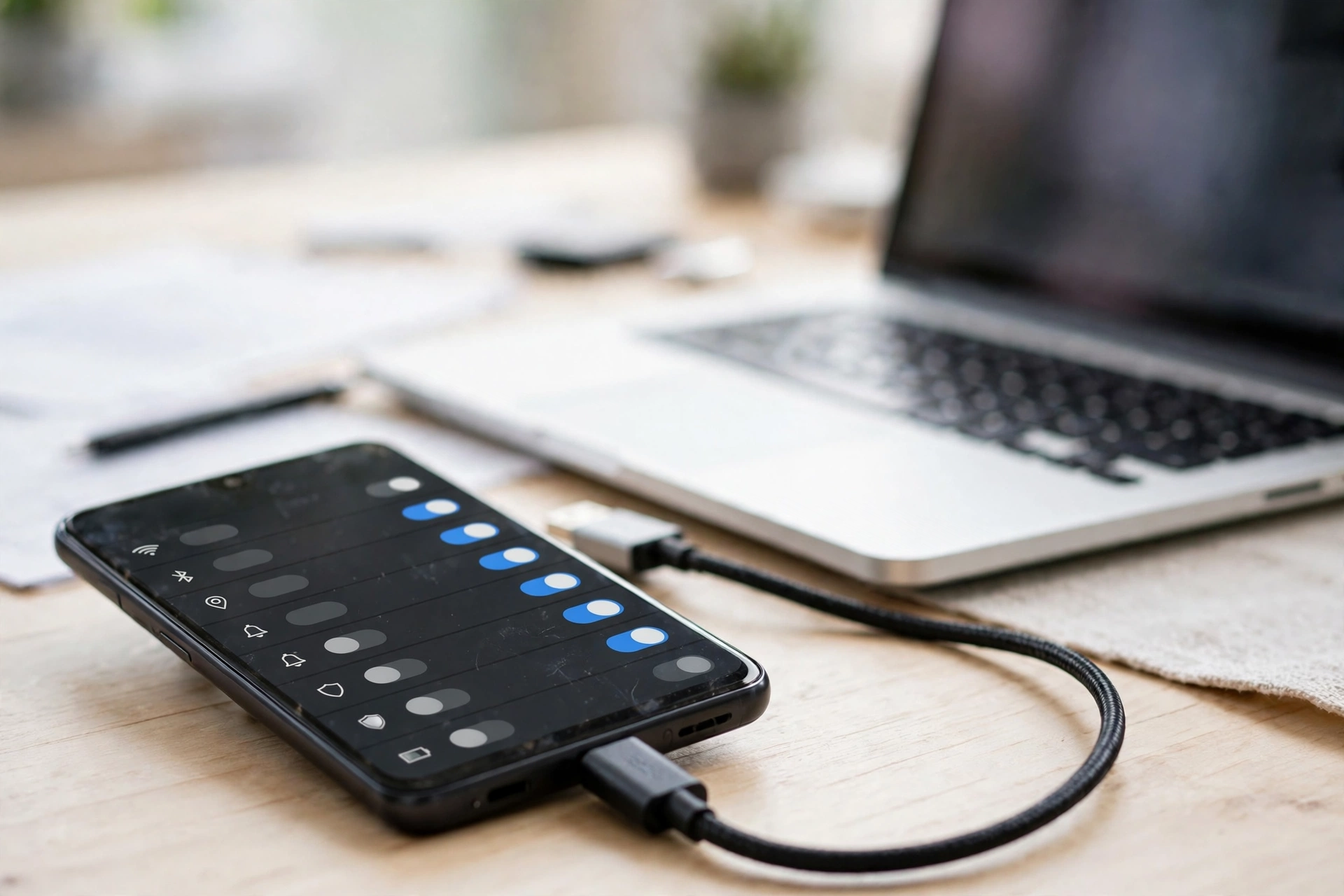
Download scrcpy only from the official Genymobile/scrcpy GitHub releases page or a trusted package manager, then enable USB debugging on the phone. Any phone on Android 5.0 (API 21) or newer works. Audio forwarding needs Android 11 or later, and camera mirroring won’t run below Android 12.
How to Enable USB Debugging on Android
To enable USB debugging, follow these 5 steps:
1. Open Settings > About phone and tap Build number 7 times to unlock Developer Options.
2. Go back to Settings > System > Developer options. The path varies by brand.
3. Turn on USB debugging.
4. Connect the phone to your computer with a data-capable USB cable, ideally under 6 feet (about 2 meters).
5. Tap Allow on the “Allow USB debugging?” prompt, and check Always allow from this computer.
Xiaomi phones need one extra toggle, USB debugging (Security settings). Mouse and keyboard input fail without it, even though the mirror itself still appears.
How to Install scrcpy on Windows, macOS, and Linux
To install scrcpy, pick the method that matches your operating system:
|
OS |
Install Method |
Command or Action |
Notes |
|
Windows |
Official ZIP |
Download scrcpy-win64-v3.x.zip from GitHub releases and extract it |
Bundles adb. Run scrcpy-console.bat to keep the terminal open and see errors |
|
Windows |
winget |
winget install –exact Genymobile.scrcpy |
Updates through winget |
|
Windows |
Scoop or Chocolatey |
scoop install scrcpy or choco install scrcpy |
Community-maintained packages |
|
macOS |
Homebrew |
brew install scrcpy then brew install –cask android-platform-tools |
Second command installs adb |
|
Linux |
Official binary |
Download the Linux x86_64 release from GitHub |
Most current option |
|
Linux |
apt or Snap |
sudo apt install scrcpy or snap install scrcpy |
apt versions often lag several releases behind |
Run scrcpy –version to check your release. A lot of scrcpy commands you’ll find online break for one reason: an older apt package lacks newer flags such as –new-display.
How to Use scrcpy Commands Step by Step
To use scrcpy commands, open a terminal in the scrcpy folder, confirm the phone appears in adb devices, then type scrcpy followed by the flags you need. Follow these 6 steps:
1. Open a terminal. Use Command Prompt or PowerShell on Windows and Terminal on macOS or Linux.
2. Change to the scrcpy folder if scrcpy is not on your PATH, for example cd C:\scrcpy.
3. Run adb devices and confirm the device shows device, not unauthorized.
4. Run scrcpy alone to test a default mirror.
5. Close the window, then add flags, for example scrcpy -m 1280 –max-fps=60.
6. Save working combinations in a .bat file (Windows) or a shell alias (macOS and Linux) so you can launch them with one click.
On Windows, double-clicking scrcpy.exe runs default settings only. Flags have to go through a terminal or an edited batch file, since a plain double-click passes nothing to the executable.
scrcpy All Commands: Full Reference Table
The tables below list scrcpy all commands most people use, grouped by task, with a plain-English description of what each flag does. Flag names for these scrcpy commands match the 3.x release line. For the exact options in your installed build, run scrcpy –help.
Video and Performance Commands
|
Command |
What It Does |
When to Use It |
|
-m 1024 / –max-size=1024 |
Limits the longest side to 1024 pixels |
Older PCs, Wi-Fi connections |
|
-b 8M / –video-bit-rate=8M |
Sets video bit rate (default 8 Mbps) |
Raise for sharpness, lower for stability |
|
–max-fps=60 |
Caps frame rate |
Saves CPU and bandwidth |
|
–video-codec=h265 |
Picks codec: h264 (default), h265, av1 |
Better quality at the same bit rate |
|
–video-encoder=NAME |
Forces a specific hardware encoder |
Fixes encoder crashes |
|
–list-encoders |
Lists the encoders the device supports |
Troubleshooting |
|
–list-displays |
Lists the available display IDs |
Multi-display devices |
|
–display-id=1 |
Mirrors a secondary display |
Foldables, external displays |
|
–crop=1224:1440:0:0 |
Mirrors part of the screen |
VR headsets, split screens |
|
–capture-orientation=0 |
Locks capture orientation |
Prevents rotation mid-recording |
|
–no-video |
Disables video (audio only) |
Using the phone as a speaker source |
|
–print-fps |
Prints FPS to the console |
Performance testing |
Audio Commands
Audio forwarding is on by default on Android 11 and newer, and these flags change the source, codec, or behavior.
|
Command |
What It Does |
|
–no-audio |
Disables audio forwarding |
|
–audio-source=mic |
Captures the phone microphone instead of device output |
|
–audio-source=playback |
Captures app playback (Android 13+) |
|
–audio-dup |
Plays audio on both the phone and the PC (Android 13+) |
|
–audio-codec=opus |
Picks codec: opus (default), aac, flac, raw |
|
–audio-bit-rate=128K |
Sets audio bit rate (default 128 Kbps) |
|
–audio-buffer=50 |
Sets the audio buffer in ms (default 50) |
|
–no-audio-playback |
Records audio without playing it on the PC |
|
–require-audio |
Exits with an error if audio fails |
Android 11 adds one catch. Audio capture fails on that version unless the phone is already unlocked at the moment scrcpy starts.
Window Commands
|
Command |
What It Does |
|
-f / –fullscreen |
Starts in fullscreen |
|
–always-on-top |
Keeps the window above other apps |
|
–window-title=”Pixel” |
Sets a custom window title |
|
–window-x=100 –window-y=100 |
Sets the window position |
|
–window-width=800 –window-height=1600 |
Sets the window size |
|
–window-borderless |
Removes window decorations |
|
–no-window |
Runs without a window (recording only) |
|
–display-orientation=90 |
Rotates the PC window (0, 90, 180, 270) |
|
–render-driver=opengl |
Forces an SDL renderer to fix display glitches |
Connection and Device Selection Commands
|
Command |
What It Does |
|
-s SERIAL / –serial=SERIAL |
Selects a device by serial from adb devices |
|
-d / –select-usb |
Uses the only USB device |
|
-e / –select-tcpip |
Uses the only TCP/IP (Wi-Fi) device |
|
–tcpip |
Switches a USB device to Wi-Fi and connects automatically |
|
–tcpip=192.168.1.20:5555 |
Connects to a specific IP and port |
|
–kill-adb-on-close |
Stops the ADB server when scrcpy exits |
Input Mode Commands
scrcpy supports 3 input modes (sdk, uhid, aoa), and the mode determines how keyboard, mouse, and gamepad events reach the phone.
|
Command |
Mode |
Best For |
|
–keyboard=sdk |
Injects Android key events (default) |
General use |
|
-K / –keyboard=uhid |
Simulates a physical keyboard |
Non-English layouts, games, works over Wi-Fi |
|
–keyboard=aoa |
USB HID via Android Open Accessory (AOA) |
USB-only, no ADB injection |
|
-M / –mouse=uhid |
Simulates a physical mouse with a captured pointer |
Games needing relative mouse input |
|
-G / –gamepad=uhid |
Forwards PC gamepads as physical controllers |
Android games with controller support |
|
–keyboard=disabled |
Turns off keyboard forwarding |
View-only sessions |
|
-n / –no-control |
Disables all input |
Presentations, read-only mirroring |
Recording Commands
|
Command |
What It Does |
|
-r file.mp4 / –record=file.mp4 |
Records to MP4 while mirroring |
|
–record=file.mkv |
Records to MKV, which survives crashes better |
|
–record-format=mkv |
Forces the container format |
|
–time-limit=300 |
Stops after 300 seconds (5 minutes) |
|
–no-playback |
Disables video and audio playback on the PC |
|
–record-orientation=90 |
Rotates the recorded file |
Storage adds up fast. At the default 8 Mbps, a recording eats about 1 MB per second, which works out to roughly 60 MB per minute and 3.6 GB per hour.
scrcpy Screen Off Command
The scrcpy screen off command is scrcpy -S (or scrcpy –turn-screen-off), which turns the phone’s physical display off while mirroring continues on your PC. Battery drain and heat both drop. Anyone sitting nearby also can’t read what’s on the phone, which matters on a shared desk or in a coffee shop.
|
Command or Shortcut |
Effect |
|
scrcpy -S |
Starts with the phone screen off |
|
scrcpy -S -w |
Screen off plus stay awake while plugged in |
|
–screen-off-timeout=600 |
Sets the phone’s screen timeout to 600 seconds (10 minutes) during mirroring |
|
–power-off-on-close |
Locks the phone when you close scrcpy |
|
–no-power-on |
Skips waking the phone at startup |
|
–show-touches / -t |
Shows taps as dots on the phone screen |
|
MOD+o |
Turns the phone screen off mid-session |
|
MOD+Shift+o |
Turns the phone screen back on |
|
MOD+p |
Presses the power button |
For long sessions, scrcpy -S -w –power-off-on-close is the most practical combination you can run. Some devices wake the display after a rotation or an app launch. Press MOD+o again when that happens.

Wireless and ADB Screen Mirror Commands
To mirror over Wi-Fi, pair the phone with ADB wirelessly, then run scrcpy or scrcpy –tcpip. Both devices have to share the same network. Results stay stable within about 10 to 30 feet (3 to 9 meters) of a Wi-Fi 5 or Wi-Fi 6 router.
How to Connect With Android 11+ Wireless Debugging
To connect without a cable, follow these 5 steps:
1. Open Developer options > Wireless debugging and turn it on.
2. Tap Pair device with pairing code to see an IP, a port, and a 6-digit code.
3. Run adb pair 192.168.1.20:37123 and enter the code.
4. Run adb connect 192.168.1.20:41235, using the separate port shown on the main Wireless debugging screen.
5. Run scrcpy -e to start mirroring.
How to Connect With the Legacy adb tcpip Method
To use the legacy method, connect by USB first, then follow these 4 steps:
1. Run adb tcpip 5555.
2. Find the phone’s IP under Settings > About phone > Status.
3. Unplug the cable and run adb connect 192.168.1.20:5555.
4. Run scrcpy -e.
scrcpy –tcpip handles the same job in one line. It reads the phone’s IP over USB and flips ADB into TCP/IP mode before connecting on its own. For a smoother wireless adb screen mirror, add -b 2M -m 1024 –max-fps=30.
Camera, Virtual Display, and OTG Commands
scrcpy 3.x can mirror the phone camera, open apps on a separate virtual display, and run as a USB keyboard and mouse with no mirroring at all.
|
Command |
What It Does |
Requirement |
|
–video-source=camera |
Mirrors the camera instead of the screen |
Android 12+ |
|
–camera-facing=back |
Picks front, back, or external |
Android 12+ |
|
–camera-size=1920×1080 |
Sets the capture resolution |
Supported sizes only |
|
–list-cameras / –list-camera-sizes |
Lists camera IDs and sizes |
None |
|
–camera-fps=60 |
Sets the camera frame rate |
Device support |
|
–new-display=1920×1080 |
Creates a virtual display |
Android 10+ |
|
–start-app=org.videolan.vlc |
Launches an app at startup |
Package name |
|
–list-apps |
Lists installed package names |
None |
|
–v4l2-sink=/dev/video2 |
Sends video to a Linux virtual webcam |
Linux, v4l2loopback |
|
–otg |
Controls the phone as a USB HID with no mirroring and no USB debugging |
USB only |
A virtual display leaves the main phone screen untouched. Take scrcpy –new-display=1920×1080 –start-app=org.videolan.vlc as a working case: VLC opens on a desktop-sized screen while the phone itself sits on its home screen.
scrcpy Keyboard and Mouse Shortcuts
scrcpy shortcuts use a MOD key, which defaults to left Alt or left Super (Windows key or Cmd), and you can change it with –shortcut-mod=lctrl. Six values work: lctrl, rctrl, lalt, ralt, lsuper, and rsuper.
|
Action |
Shortcut |
|
Toggle fullscreen |
MOD+f |
|
Rotate window left or right |
MOD+Left / MOD+Right |
|
Resize window to 1:1 pixels |
MOD+g |
|
Remove black borders |
MOD+w or double-click the border |
|
HOME |
MOD+h or middle-click |
|
BACK |
MOD+b, MOD+Backspace, or right-click |
|
App switch |
MOD+s |
|
MENU |
MOD+m |
|
Volume up or down |
MOD+Up / MOD+Down |
|
Power |
MOD+p |
|
Wake screen |
Right-click while the screen is off |
|
Phone screen off or on |
MOD+o / MOD+Shift+o |
|
Rotate device screen |
MOD+r |
|
Expand notifications or settings panel |
MOD+n / MOD+n+n |
|
Collapse panels |
MOD+Shift+n |
|
Copy, cut, paste |
MOD+c, MOD+x, MOD+v |
|
Type the PC clipboard as text |
MOD+Shift+v |
|
Pause or unpause display |
MOD+z / MOD+Shift+z |
|
Reset video capture |
MOD+Shift+r |
|
Toggle FPS counter |
MOD+i |
|
Pinch to zoom |
Ctrl+click and drag |
|
Install an APK |
Drag and drop the APK onto the window |
|
Push a file |
Drag and drop it (saves to /sdcard/Download/) |
Deprecated scrcpy Commands and Their Replacements
Older tutorials and cheat sheets use flags that scrcpy renamed in versions 2.0 through 3.0, and these old flags print warnings or fail in current releases.
|
Old Flag |
Current Flag |
Changed In |
|
–bit-rate |
–video-bit-rate (-b still works) |
2.0 |
|
–encoder |
–video-encoder |
2.0 |
|
–codec-options |
–video-codec-options |
2.0 |
|
–hid-keyboard |
–keyboard=uhid (-K) |
2.4 |
|
–hid-mouse |
–mouse=uhid (-M) |
2.4 |
|
–rotation |
–display-orientation |
2.x |
|
–lock-video-orientation |
–capture-orientation |
3.0 |
|
–forward-all-clicks |
–mouse-bind=++++ |
3.0 |
After every upgrade, run scrcpy –help to catch fresh renames.
6 scrcpy Command Recipes for Common Tasks
These 6 copy-paste scrcpy commands cover the tasks people search for most: screen-off use, gaming, presenting, recording, webcam use, and virtual displays.
|
Task |
Command |
|
Long session, phone dark |
scrcpy -S -w –power-off-on-close |
|
Low-latency gaming |
scrcpy -m 1600 –max-fps=60 -b 12M -K -G |
|
Live demo or presentation |
scrcpy –always-on-top –show-touches –window-title=”Demo” -S |
|
Tutorial recording, no window |
scrcpy –no-window –record=tutorial.mp4 –time-limit=600 |
|
Phone as Linux webcam |
scrcpy –video-source=camera –camera-facing=back –camera-size=1920×1080 –v4l2-sink=/dev/video2 –no-video-playback |
|
App on a virtual screen |
scrcpy –new-display=1920×1080/240 –start-app=com.android.chrome |
OBS Studio users can grab the scrcpy window through a Window Capture source. Adding –window-borderless gives that capture a clean edge.
How to Tune Bit Rate, Resolution, and FPS
To reduce lag, lower –max-size first, then –max-fps, then –video-bit-rate, because resolution has the largest effect on encoder load.
|
Goal |
Max Size |
Max FPS |
Bit Rate |
Codec |
|
Wi-Fi stability |
1024 |
30 |
2M |
h264 |
|
Balanced USB |
1600 |
60 |
8M (default) |
h264 |
|
Sharp text and recording |
0 (native) |
60 |
16M |
h265 |
|
Fast-paced gaming |
1600 |
60 or 120 |
12M |
h264 |
Performance comes down to 4 factors:
1. Connection: USB 3.0 handles 16 Mbps and higher easily, while crowded 2.4 GHz Wi-Fi struggles above 4 Mbps.
2. Resolution: Dropping from 2400 to 1024 pixels on the long side cuts the pixel count by roughly 80%.
3. Codec: H.265 (HEVC) and AV1 deliver better quality per megabit, but not every phone encodes them reliably.
4. PC decoding: Older laptops drop frames at native resolution and 120 FPS.
Mid-session, press MOD+i to watch the real FPS while you adjust.
Troubleshooting scrcpy Commands
Most scrcpy errors trace back to 4 causes: ADB authorization, cable or driver problems, encoder incompatibility, or an outdated scrcpy version.
|
Symptom |
Likely Cause |
Fix |
|
adb devices shows nothing |
Charge-only cable or missing driver |
Use a data cable, switch USB mode to File Transfer, install the OEM USB driver on Windows |
|
Device shows “unauthorized” |
Debugging prompt not accepted |
Revoke USB debugging authorizations, replug, tap Always allow |
|
“More than one device” error |
Multiple devices connected |
Use -s SERIAL, -d, or -e |
|
Window opens, then closes |
Error hidden on double-click launch |
Run from a terminal or scrcpy-console.bat |
|
Black screen or encoder crash |
Unsupported codec or encoder |
Run –list-encoders, then add –video-encoder=NAME or -m 1024 |
|
Black screen in one app |
App blocks capture (banking, streaming apps) |
No fix, because the app blocks capture by design |
|
No audio |
Android 10 or older, or phone locked at start |
Update Android, unlock before launching, check –audio-source |
|
Shortcuts do nothing |
OS or window manager captures Alt or Super |
Add –shortcut-mod=lctrl |
|
Unknown option error |
Outdated version or renamed flag |
Update scrcpy and check the deprecated flag table |
|
Laggy wireless video |
Weak Wi-Fi signal |
Add -b 2M -m 1024 –max-fps=30 or switch to 5 GHz |
OEM Quirks on Xiaomi, Samsung, and Pixel Phones
Xiaomi, Samsung, and Pixel phones each have 1 common scrcpy issue:
● Xiaomi (HyperOS and MIUI): Turn on USB debugging (Security settings), which requires a Mi account and a SIM card on some models, or input fails.
● Samsung: Some Galaxy models fail with –video-codec=h265, so switch back to h264 or pick another encoder from –list-encoders.
● Google Pixel: Wireless debugging turns off after a network change, so re-run adb pair on a new network.
Conclusion
scrcpy commands give you full control over Android mirroring, from screen-off sessions with -S to Wi-Fi mirroring with –tcpip, recording with –record, and virtual displays with –new-display. Start with plain scrcpy and add one flag at a time, saving each working combination as a script. Flag names shift between major releases. Check scrcpy –version and scrcpy –help after every update to stay current. Keep this page’s reference tables bookmarked as an ungated cheat sheet, and turn to the official Genymobile GitHub documentation for any flag added after this guide’s November 2026 update.