How to Mirror Phone to Laptop: Android and iPhone Guide
How to mirror phone to laptop screens depends on your two devices. Android phones mirror to Windows laptops through Microsoft Phone Link or the Windows Wireless Display feature. iPhones mirror to Macs through Apple’s iPhone Mirroring or AirPlay. Any Android phone mirrors to any laptop over USB with the free scrcpy tool.
Key Takeaways
- Microsoft Phone Link mirrors the screens of select Samsung, HONOR, OPPO, ASUS, vivo, and Xiaomi phones running Android 10 or later to a Windows PC on the same Wi-Fi network.
- A Windows laptop accepts a Miracast mirror from an Android phone only after the free Wireless Display optional feature is installed in Windows Settings.
- Windows does not support Apple AirPlay natively, so mirroring an iPhone to a Windows laptop requires a third-party AirPlay receiver app.
- Apple’s iPhone Mirroring lets a Mac running macOS Sequoia 15 or later show and control an iPhone running iOS 18 or later, and the feature is unavailable in the European Union.
- The free, open-source scrcpy tool mirrors Android 5.0 or later phones to Windows, macOS, or Linux with 35 to 70 milliseconds of latency, according to the scrcpy project on GitHub.
What Is Phone-to-Laptop Screen Mirroring?
Phone-to-laptop screen mirroring is a display-sharing method that copies a phone’s live screen onto a laptop in real time. Every app, photo, video, and notification on the phone appears in a window on the laptop. The phone keeps running its own apps, and the laptop displays them.
Some mirroring methods also let the laptop control the phone. Microsoft Phone Link, Apple iPhone Mirroring, and scrcpy accept mouse and keyboard input from the laptop. Apple describes AirPlay as a way to view an iPhone screen without interacting with it.
Anyone learning how to mirror phone to laptop screens meets three technologies. Miracast is a Wi-Fi Alliance standard built into Windows and many Android phones. AirPlay is Apple’s protocol for iPhone, iPad, and Mac. USB debugging is the Android developer connection that scrcpy uses over a cable or Wi-Fi.
How Can I Mirror My Phone to My Laptop? Match the Method to Your Devices
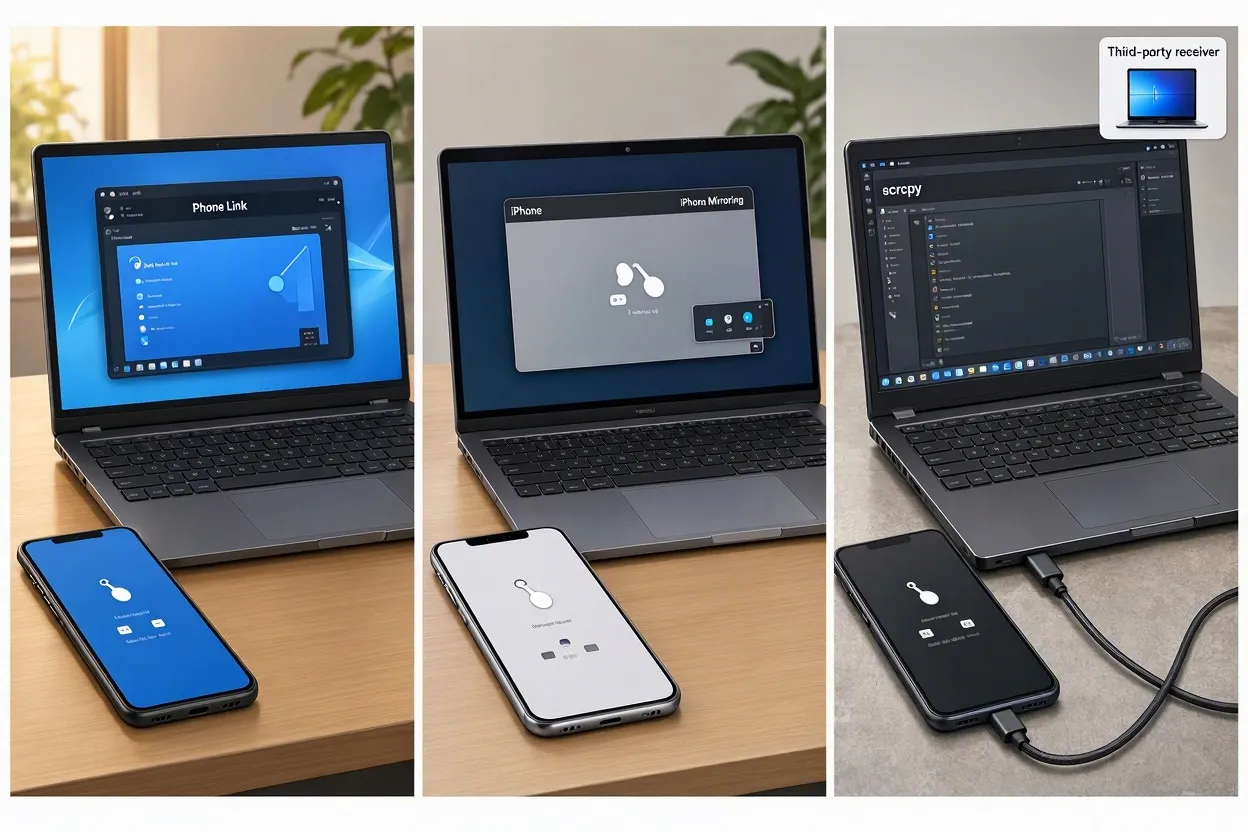
The right mirroring method depends on the phone’s operating system and the laptop’s operating system. Android phones pair best with Windows laptops, iPhones pair best with Macs, and the free scrcpy tool covers Android phones on any laptop. Mixed pairs, such as an iPhone with a Windows laptop, need a third-party receiver app.
| Your devices | Best method (free wired option) | Phone control from laptop |
| Supported Android (Samsung, HONOR, OPPO, ASUS, vivo, Xiaomi) → Windows 10 or 11 | Microsoft Phone Link (wired: scrcpy) | Yes |
| Other Android → Windows 10 or 11 | Windows Wireless Display, Miracast (wired: scrcpy) | Yes with scrcpy; not documented by Microsoft for Wireless Display |
| Android → Mac | scrcpy; macOS has no built-in method | Yes |
| iPhone → Mac | iPhone Mirroring on macOS Sequoia 15+, or AirPlay to Mac on macOS Monterey 12+ (wired: QuickTime Player) | Yes with iPhone Mirroring; no with AirPlay or QuickTime |
| iPhone → Windows 10 or 11 | Third-party AirPlay receiver app (no verified wired option) | Depends on the app |
Use the row for your devices to see how to mirror my phone to my laptop with the fewest steps.
How Do I Mirror an Android Phone to a Windows Laptop?
To mirror an Android phone to a Windows laptop, use Microsoft Phone Link on supported Samsung, HONOR, OPPO, ASUS, vivo, and Xiaomi phones, or use the Windows Wireless Display feature on most other Android phones. Both methods are free, both work over Wi-Fi, and both run on Windows 10 and Windows 11 laptops.
Method 1: Mirror Android to PC with Phone Link
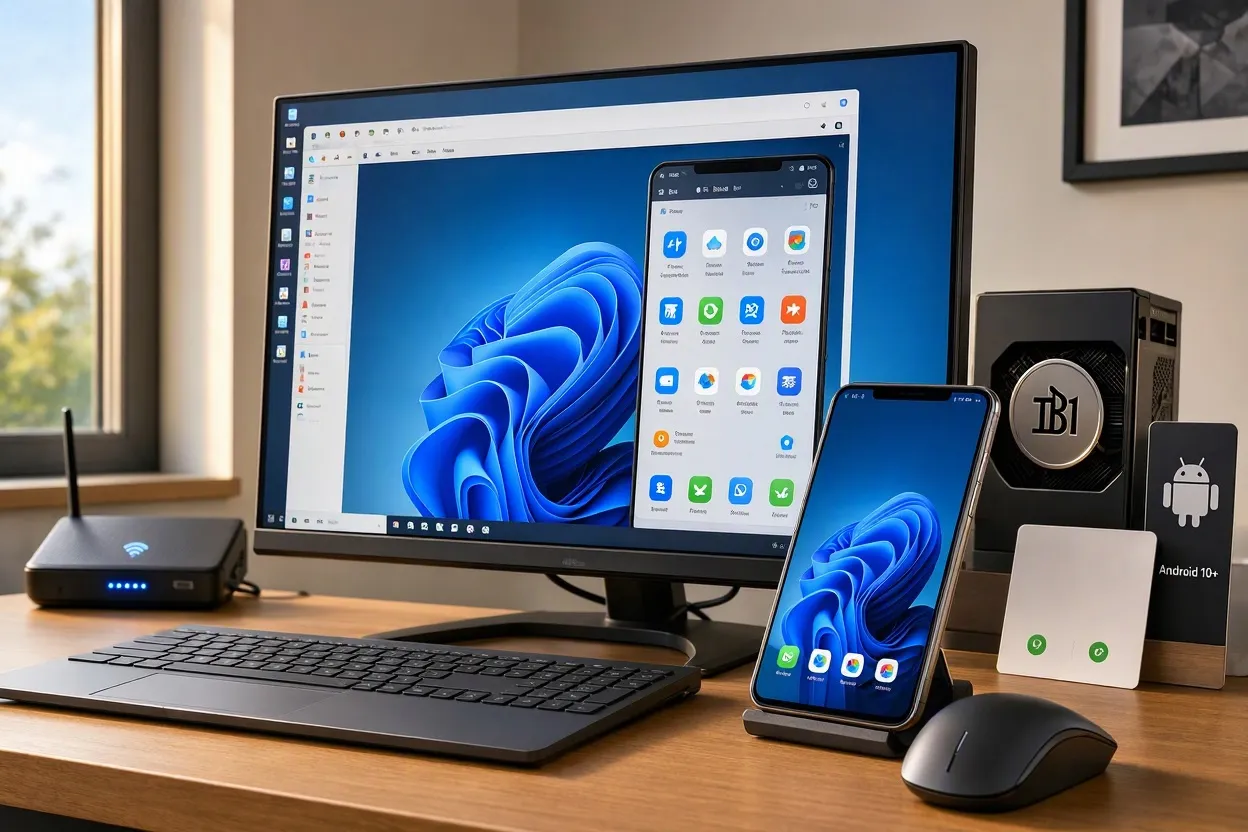
Microsoft Phone Link is the Windows app that streams a linked Android phone’s screen and apps to a PC. Microsoft Support lists these requirements for the Apps and phone screen features:
- A Windows 10 PC with the May 2019 Update or later, or a Windows 11 PC
- A graphics processor that supports DirectX 11
- An Android phone running Android 10 or later with Link to Windows preinstalled
- A Wi-Fi network shared by the phone and the PC
Follow these steps to mirror the phone screen:
- Open the Phone Link app on the Windows PC.
- Select Pair with QR code.
- Open Link to Windows on the phone. On a Samsung Galaxy phone, tap Link to Windows in Quick Settings.
- Scan the QR code on the PC screen with the phone.
- Allow the permissions the phone requests.
- Select Apps at the top of the Phone Link window. Some devices label this section Phone Screen.
- Select Open phone screen.
- Tap Start now on the phone to allow screen streaming.
Samsung Support adds 3 details for Galaxy owners. The phone’s own screen goes blank during mirroring, and a swipe or a press of the Side button wakes it. Phone Link opens up to 5 phone apps at once. Phone audio, such as a Spotify track, plays through the PC speakers.
Method 2: Mirror Android to PC with Windows Wireless Display (Miracast)
Windows Wireless Display is an optional Windows feature that turns a laptop into a Miracast receiver for Android phones that Phone Link does not support. Microsoft Support documents the setup on Windows 11:
- Open Settings on the Windows laptop.
- Select System, then Projecting to this PC.
- Select Optional features.
- Select View features next to Add an optional feature.
- Type “wireless display” in the search box.
- Check Wireless Display, then select Next and Install.
- Return to Projecting to this PC and set who can project to the laptop.
- Open the Wireless Display app from the taskbar search box.
- Open Quick Settings on the Android phone and tap Smart View, Cast, or Screen Mirroring.
- Tap the laptop’s name in the device list.
- Enter the PIN if the laptop displays one.
The Wireless Display app requires Windows 11 version 22H2 or later. Windows 10 and earlier Windows 11 versions use the Connect app instead, which opens from the same taskbar search box.
How Do I Mirror an iPhone to a Windows Laptop?
To mirror an iPhone to a Windows laptop, install a third-party AirPlay receiver app on the laptop, such as LonelyScreen or AirServer, because Windows does not support Apple AirPlay natively. The iPhone then sends its screen through the Screen Mirroring button in Control Center, with both devices on the same Wi-Fi network.
- Install an AirPlay receiver app on the Windows laptop from the developer’s official website.
- Open the receiver app.
- Connect the iPhone and the laptop to the same Wi-Fi network.
- Open Control Center on the iPhone.
- Tap Screen Mirroring.
- Select the laptop’s name from the list.
HP Tech Takes names LonelyScreen and AirServer as two receiver options. Check each app’s current price and trial terms on the developer’s site before installing [NEEDS SOURCE: current pricing for each app]. Microsoft’s Phone Link requirements for the Apps feature list only Android devices, so Phone Link does not mirror an iPhone screen.
How Do I Mirror an iPhone to a Mac?
To mirror an iPhone to a Mac, open the iPhone Mirroring app on a Mac running macOS Sequoia 15 or later, which shows and controls an iPhone running iOS 18 or later. Macs running macOS Monterey 12 or later also receive an iPhone screen through AirPlay to Mac, and any Mac shows a cabled iPhone through QuickTime Player.
iPhone Mirroring: View and Control the iPhone
Apple Support lists these iPhone Mirroring requirements:
- A Mac with Apple silicon or the Apple T2 Security Chip, running macOS Sequoia 15 or later
- An iPhone running iOS 18 or later with a passcode set
- The same Apple Account on both devices, protected by two-factor authentication
- Bluetooth and Wi-Fi turned on for both devices
- An iPhone that stays locked and near the Mac
- A Mac that is not sharing its internet connection or using AirPlay or Sidecar
Follow these steps to start iPhone Mirroring:
- Click iPhone Mirroring in the Mac’s Dock, or open the app from Spotlight.
- Enter the iPhone passcode on the iPhone if the Mac asks for it.
- Choose whether the Mac shows iPhone notifications.
- Choose whether the Mac asks for a login each time.
- Click, scroll, and type on the mirrored iPhone with the Mac’s trackpad, mouse, and keyboard.
iPhone audio plays through the Mac’s speakers, according to Apple. The iPhone camera and microphone stay unavailable inside iPhone Mirroring, so Face ID and phone calls do not work there. To stop, quit the iPhone Mirroring app or pick up the iPhone and enter its passcode.
AirPlay to Mac: View the iPhone Screen
AirPlay to Mac turns a Mac running macOS Monterey 12 or later into an AirPlay receiver. Apple says the feature works best with iPhone 7 or later, and older iPhones send the screen at a lower resolution.
- Open System Settings on the Mac.
- Turn on AirPlay Receiver.
- Open Control Center on the iPhone.
- Tap Screen Mirroring.
- Select the Mac’s name.
QuickTime Player: Show the iPhone Screen over a Cable
QuickTime Player, the video app included with every Mac, displays a connected iPhone’s screen as a live camera source.
- Connect the iPhone to the Mac with a USB cable.
- Open QuickTime Player.
- Choose File, then New Movie Recording.
- Click the Capture Device Selection menu next to the Record button.
- Choose the iPhone under Camera.
How Do I Mirror an Android Phone to a Mac?
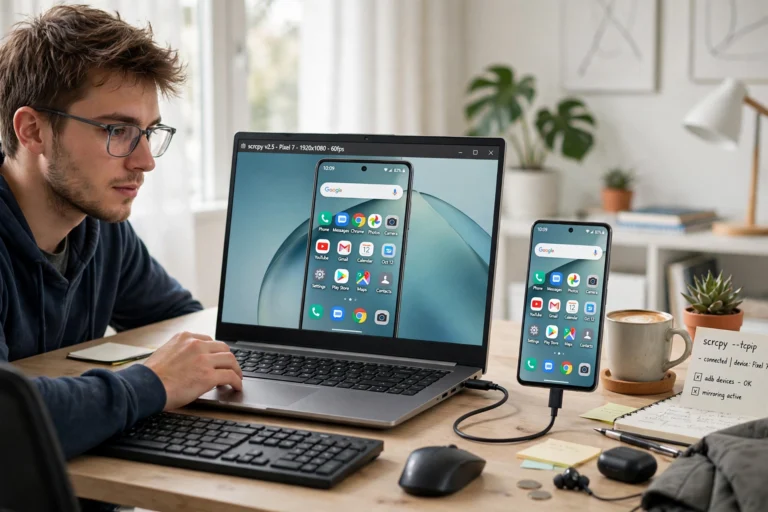
To mirror an Android phone to a Mac, use scrcpy, a free, open-source app that mirrors and controls Android 5.0 or later phones over a USB cable or Wi-Fi. macOS includes no built-in Android mirroring feature. According to the scrcpy project on GitHub, scrcpy installs nothing on the phone and needs no root access.
scrcpy runs on Windows, macOS, and Linux, so the same tool works on both laptop types. On a Mac, turn on USB debugging on the phone, install scrcpy with the macOS instructions in the official GitHub repository, connect the phone with a USB cable, and run the scrcpy command in Terminal.
The scrcpy maintainers name github.com/Genymobile/scrcpy as the only official download source, so skip copies on other sites.
Can I Mirror My Phone to My Laptop with a USB Cable?
Yes, an Android phone mirrors to a laptop over a USB cable with scrcpy, and an iPhone mirrors to a Mac over a cable with QuickTime Player. The scrcpy project reports 35 to 70 milliseconds of latency at 30 to 120 frames per second, depending on the device.
A cable is the most stable answer to how to mirror phone to laptop screens, because a cable removes Wi-Fi interference.
Follow these steps to mirror Android to PC with scrcpy on Windows:
- Open Settings on the Android phone and find Build number. On a Samsung Galaxy phone, the path is About phone, then Software information.
- Tap Build number 7 times until the phone shows “You are now a developer!”
- Open Developer options and turn on USB debugging.
- Download the scrcpy Windows zip file from the official GitHub releases page.
- Extract the zip file to a folder on the laptop.
- Connect the phone to the laptop with a USB cable.
- Tap Allow on the phone’s USB debugging prompt.
- Double-click open_a_terminal_here.bat in the scrcpy folder.
- Type scrcpy and press Enter.
USB debugging gives a connected computer deep access to the phone. Approve the prompt only on a laptop you own, and turn USB debugging off after the session.
An HDMI cable does not work as a substitute. Most laptops have HDMI output ports only, so an HDMI connection from a phone to a laptop needs a separate HDMI capture card.
Can I Mirror My Phone to My Laptop Without Wi-Fi?
Yes, a phone mirrors to a laptop without Wi-Fi over a USB cable, using scrcpy for Android phones or QuickTime Player for iPhones on a Mac. The scrcpy project states that scrcpy needs no internet connection and no account. Phone Link and AirPlay to Mac need both devices on the same Wi-Fi network.
Miracast uses Wi-Fi Direct, a device-to-device link, so Windows Wireless Display connects without a router. Apple’s iPhone Mirroring needs Wi-Fi and Bluetooth turned on but lists no shared-network requirement.
Can I Mirror My Phone to My Laptop for Free Without an App?
Yes, three free mirroring methods need no third-party app: Windows Wireless Display for Android phones, iPhone Mirroring for iPhones on newer Macs, and AirPlay to Mac for iPhones on Macs running macOS Monterey 12 or later. Windows Wireless Display installs from Windows Settings as an optional feature, not as a separate download.
Phone Link is also free, and scrcpy costs nothing, although scrcpy is a separate download with no account and no ads.
Is Screen Mirroring the Same as Casting?
No, screen mirroring and casting are different: screen mirroring copies the phone’s entire live screen to the laptop, while casting sends one video, song, or photo stream to the receiving device. HP Tech Takes explains that casting usually streams content straight from the internet, which leaves the phone free for other tasks.
| Feature | Screen mirroring | Casting |
| What appears on the receiving screen | The entire phone screen, including notifications | One video, song, or photo stream |
| Phone use during the session | The phone shows the same content as the laptop | The phone stays free for other apps |
| Common technologies | Miracast, AirPlay, Phone Link, scrcpy | Chromecast (Google Cast), AirPlay |
| Best use | Apps, demos, games, and photo slideshows | Long videos and music |
Streaming services set their own rules for mirrored video. Apple notes that some streaming content providers restrict whether premium video plays through iPhone Mirroring.
Is Wired Mirroring Better Than Wireless Mirroring?
It depends on the task: wired mirroring is better for gaming, live app demos, and screen recording, while wireless mirroring is better for showing photos or slides with the phone in hand. The 3 deciding factors are latency, setup effort, and freedom of movement.
| Factor | Wired (scrcpy, QuickTime Player) | Wireless (Phone Link, Miracast, AirPlay, iPhone Mirroring) |
| Latency | 35 to 70 milliseconds for scrcpy, per the scrcpy project | Not published by Microsoft or Apple; varies with the Wi-Fi network and devices |
| Setup effort | Developer options and USB debugging on Android; one cable on iPhone | App pairing or a settings change on each device |
| Freedom of movement | Limited to the cable length | Free movement within Wi-Fi or Bluetooth range |
| Network dependence | No Wi-Fi needed | Wi-Fi needed for most methods |
5 Phone-to-Laptop Mirroring Methods Compared
Among 5 common phone-to-laptop mirroring methods, only scrcpy publishes a latency figure, 35 to 70 milliseconds, while Microsoft Phone Link and Apple iPhone Mirroring add laptop audio and full phone control without a cable. Every value in this table comes from Microsoft, Apple, Samsung, or scrcpy project documentation.
Compatibility and setup
| Method | Works with | Setup |
| Microsoft Phone Link | Select Samsung, HONOR, OPPO, ASUS, vivo, and Xiaomi phones on Android 10+ → Windows 10 (May 2019 Update+) or Windows 11 | Pair with a QR code; same Wi-Fi network |
| Windows Wireless Display | Miracast-capable Android phones → Windows 11 22H2+ (Connect app on Windows 10) | Install the Wireless Display optional feature |
| scrcpy over USB | Android 5.0+ → Windows, macOS, or Linux | Turn on USB debugging; connect a USB cable |
| Apple iPhone Mirroring | iOS 18+ iPhone → macOS Sequoia 15+ Mac with Apple silicon or a T2 chip | Same Apple Account with two-factor authentication; Wi-Fi and Bluetooth on |
| Third-party AirPlay receiver | iPhone → Windows 10 or 11 | Install the receiver app; same Wi-Fi network |
Performance and features
| Method | Published latency | Audio and phone control |
| Microsoft Phone Link | Not published by Microsoft | Audio yes, per Samsung; full phone control |
| Windows Wireless Display | Not published by Microsoft | Neither documented by Microsoft |
| scrcpy over USB | 35 to 70 milliseconds, per the scrcpy project | Audio on Android 11+; keyboard and mouse control |
| Apple iPhone Mirroring | Not published by Apple | Audio yes, per Apple; full control except camera and microphone |
| Third-party AirPlay receiver | Varies by app | Varies by app |
Microsoft and Apple publish no latency figures for Phone Link, Wireless Display, or iPhone Mirroring, so real-world lag with those three methods depends on the Wi-Fi network and the devices in use.
Why Is My Laptop Not Showing Up for Screen Mirroring?
A laptop does not show up for screen mirroring when its receiving feature is off, when the phone and laptop sit on different Wi-Fi networks, or when the laptop lacks Miracast hardware support. On a Windows laptop, the first fix to try is installing the Wireless Display optional feature and opening the Wireless Display app before the phone searches.
Work through these 6 fixes in order:
- Install the Wireless Display optional feature on the Windows laptop, then open the Wireless Display app.
- Turn on Wi-Fi on the laptop, which Microsoft lists as a requirement for receiving a mirror.
- Connect the phone and the laptop to the same Wi-Fi network for Phone Link and AirPlay.
- Grant every permission the mirroring app requests on the phone, including Start now in Phone Link.
- Update the phone and the laptop to their latest software, then restart both devices.
- Pause any VPN or third-party security software, which Apple lists as a common cause of iPhone Mirroring failures.
Apple adds one check for Macs: stop heavy Bluetooth or Wi-Fi use, such as streaming audio to a speaker, then reconnect.
Does My Laptop Support Miracast?
A Windows laptop supports Miracast when the DirectX Diagnostic Tool report on that laptop contains the line “Miracast: Supported.” The DirectX Diagnostic Tool (dxdiag) is built into every Windows 10 and Windows 11 laptop. A laptop without Miracast support cannot receive a Wireless Display mirror.
- Press the Windows logo key and R together.
- Type dxdiag and press Enter.
- Select Save All Information and save the text file.
- Open the file in Notepad.
- Press Ctrl and F together, then search for “miracast.”
A laptop without Miracast support still mirrors an Android phone through Phone Link on a supported phone, or through scrcpy over USB.
How Do I Fix Screen Mirroring Lag?
To fix screen mirroring lag, move the phone and laptop closer to the Wi-Fi router, stop other streaming on both devices, or switch to a USB cable with scrcpy. The scrcpy project adds that lowering the mirrored resolution greatly improves performance, for example with the command scrcpy -m1024.
- Shorten the distance: keep the phone and the laptop in the same room as the router.
- Free the bandwidth: pause downloads, video calls, and other streams on the same network.
- Switch to a cable: mirror over USB with scrcpy, which removes Wi-Fi from the connection.
- Lower the resolution: run scrcpy with a smaller maximum size, such as 1024 pixels.
How Do I Connect a PC to a TV Wirelessly?
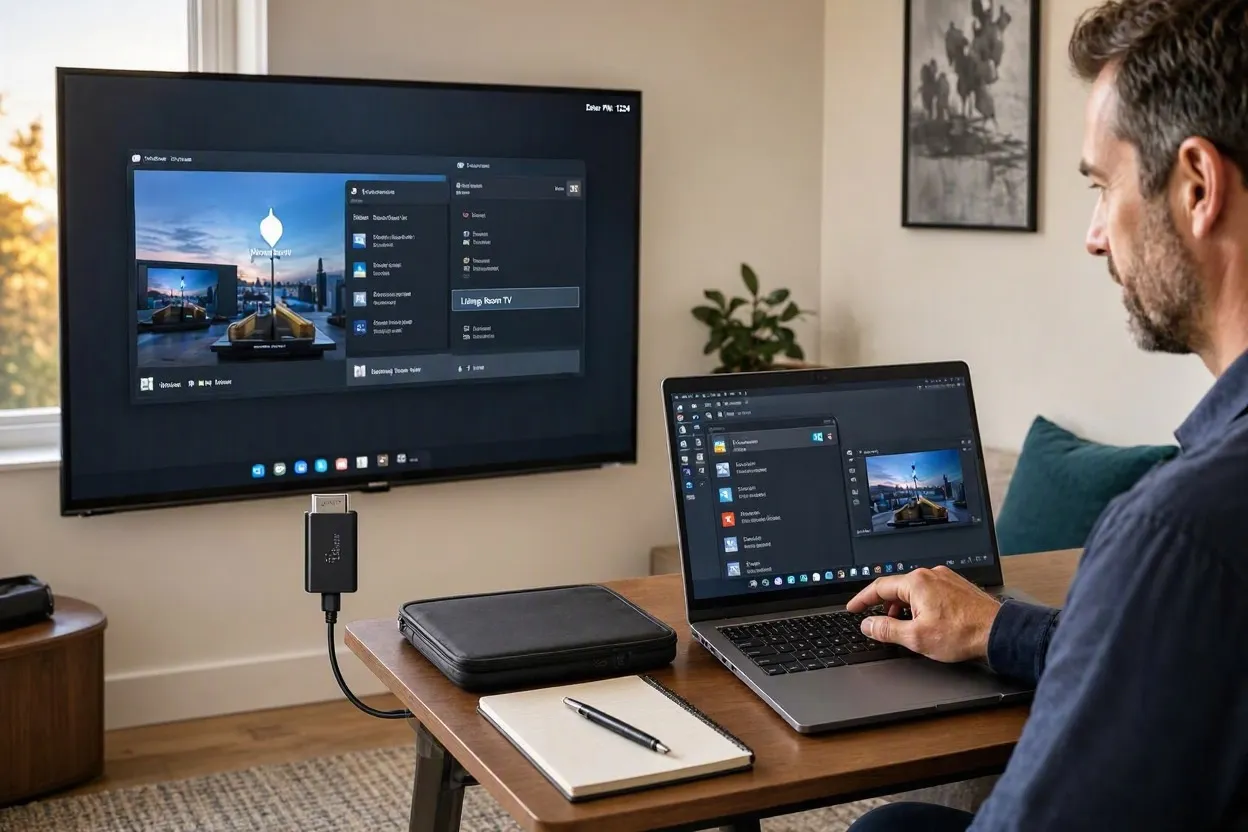
To connect a PC to a TV wirelessly, press the Windows logo key and K together on the PC, then select the TV from the list of available displays. Microsoft Support says this cast method works with TVs, projectors, and other displays that support Miracast, or with a Miracast adapter plugged into the TV.
This shortcut is the fastest way to mirror PC to TV screens or share computer screen content in a meeting room:
- Turn on the TV, and plug in the Miracast adapter if the TV needs one.
- Press the Windows logo key and K together on the PC.
- Select the TV from the list of available devices.
- Follow any on-screen prompts, such as a PIN shown on the TV.
After the connection starts, press the Windows logo key and P together to choose what the TV shows:
| Goal | Windows display mode |
| Show content on the PC screen only | PC screen only |
| Show the same content on both screens | Duplicate |
| Spread the desktop across both screens | Extend |
| Show content on the TV only | Second screen only |
How to Mirror Phone to Laptop: Which Method Should You Use?
Use the built-in method that matches your devices first: Phone Link for supported Android phones on Windows, iPhone Mirroring for iPhones on a newer Mac, and scrcpy for any Android phone that needs a wired, low-lag connection. Choose a third-party receiver app only for an iPhone and a Windows laptop.
Built-in options keep expanding. Microsoft’s Phone Link supported-device list now spans 6 Android brands, and Apple’s support page for iPhone Mirroring already documents new controls for macOS 27, including a resizable mirroring window. Recheck the official Microsoft and Apple requirement pages before each major operating system update, because menu names and supported devices change between releases.